 File Organizer
Overview
External drives collect years of overlapping phone exports, Google Takeout archives, old backups and loose downloads. Finding one photo is hard, and a lot of the space is often copies of the same files. File Organizer helps in three stages:
①Understand
A read‑only scan builds an index on your Mac: every file, its type and size, and for photos and videos the date taken, camera and location.
②Explore
Browse a timeline gallery, explore folders, search with filters, and see exact and near‑duplicate copies with a suggested keeper.
③Organize
Get a proposed layout such as Photos/2024/2024-03 March, approve what you like, and move it safely with a journal and undo.
The app is organised into six sections in the sidebar: Dashboard, Photos, Files, Duplicates, Organize and History. A footer at the bottom of the window always shows the safety state, for example “Nothing moves without you”, or “Moving files you approved” while a move is running.
Safety promises
Your files matter more than any feature. These rules are built into the code, not just the interface:
🔒Read‑only by default
Scanning, reading photo details, making thumbnails and checking duplicates only read files. Nothing is written to the scanned drive.
🚫No delete, no overwrite
There is no code that deletes, overwrites, copies into or edits a file. Duplicates are moved to a review folder for you to decide about.
✅Approval required
Every proposed move starts as proposed. Only files you approve are moved, and only after you confirm the totals.
🔍Checked before every move
Each file must be unchanged since the scan, its new place must be empty, it can't be in a protected folder, and it must stay on the same drive.
📒Journal and log
Every move is written to a journal before and after it happens, plus a plain‑text log you can open at any time.
↩︎Undo
Any batch can be put back exactly. Only the empty folders that the batch created are removed.
The only code that can change a drive
All drive changes go through one small type, FileMutator, which can do exactly three things:
- Move a file to a path where nothing exists, using the macOS
renamex_npcall withRENAME_EXCL. The move is atomic, refuses to overwrite and fails rather than copy if the destination is on another drive. Contents, dates, permissions and metadata travel with the file untouched. - Create a single folder.
- Remove a folder, and only if it is empty. The operating system refuses otherwise.
Privacy
- No network access: no accounts, cloud, analytics, telemetry or crash reporting.
- The index and thumbnails are stored only on your Mac, in your user Library (see Where data lives).
- The only thing that leaves the app is what you choose to open: for example, Open in Maps on a photo with a location hands its coordinates to Apple Maps, and Show in Finder opens Finder.
- To make the app forget everything, quit it and delete the two folders listed under Where data lives.
Install
Requirements: macOS 14 Sonoma or later, on an Apple Silicon Mac (M1 or newer). About 1 GB of free space for Apple's developer tools, plus room on your Mac for the index and thumbnails (roughly 1 GB per 100,000 photos).
Build it yourself (recommended)
- Install Apple's free Command Line Tools if you don't have Xcode. Open Terminal and run:
Accept the dialog and wait for it to finish.xcode-select --install - Download the source and build the app:
This createsgit clone https://github.com/raunak1264/file-organizer.git cd file-organizer ./scripts/make-app.shbuild/FileOrganizer.app, usually in under a minute. - Open it with
open build/FileOrganizer.app, or drag it into your Applications folder first.
If someone gives you a built copy
The app is not signed with an Apple Developer ID or notarized, so macOS warns the first time. Right‑click (or Control‑click) File Organizer and choose Open, then confirm. If macOS still blocks it, go to System Settings → Privacy & Security and click Open Anyway.
Quick start
- Choose a drive. Plug in your drive, open File Organizer and click Choose drive or folder…. You can pick a whole drive or one folder.
- Let it scan. The banner at the top shows progress and the time left. You can keep browsing while it works, or press Stop: everything found so far is kept and the next scan continues from there.
- Look around. The Dashboard gives the big picture. Photos is your timeline, and Files is the folder explorer with search.
- Find duplicates. In Duplicates, click Find exact duplicates and, for photos, Find similar photos. Review the groups and change the suggested copy to keep where you disagree.
- Protect folders. In Files, right‑click any folder you want left exactly as it is and choose Protect this folder.
- Make a plan. In Organize, click Make a plan. Nothing moves yet. Review the batches and approve or reject them.
- Move. Click Move approved files…, check the totals, tick the confirmation box and start. Your Mac stays awake during the move.
- Check History. Every batch is listed with each file's old and new place. Use Undo… if you change your mind.
Scanning a drive
A scan has three phases, shown in the banner at the top of the window:
| Phase | What happens | Typical speed |
|---|---|---|
| Listing files | Walks every folder and records each file's path, size, dates and type. System folders such as .Spotlight-V100, .Trashes and .fseventsd are skipped. | Tens of thousands of files per second |
| Linking | Pairs Live Photos (a HEIC/JPG with its short MOV), and attaches sidecars such as .AAE edits, .xmp files and Google Takeout .json files to their photo, so they always move together. | Seconds |
| Reading photo details | Reads the date taken, camera, size, location and video length from each photo and video, without decoding the whole image. Then groups photos into events. | Hundreds of files per second (depends on the drive) |
Rescans are quick
Click Rescan on the Dashboard after you've added or changed files. A file whose size, modification date and inode are unchanged is skipped, files that vanished are marked missing, and photo details are only read for new or changed files.
Several drives
The app works with any drive macOS can read: APFS, HFS+, exFAT and FAT32. Each drive is recognised by its volume ID, so it is remembered even if you rename it or plug it into a different port. Switch between drives in the sidebar. When a drive is unplugged its index and thumbnails stay browsable. Actions that need the files, such as preview, Show in Finder and moving, are turned off until you reconnect it.
Dashboard
The Dashboard is the overview of the selected drive.
- Drive summary: total files and size, broken down by type: photos, RAW photos, videos, audio, documents, archives, installers, disk images, code and other.
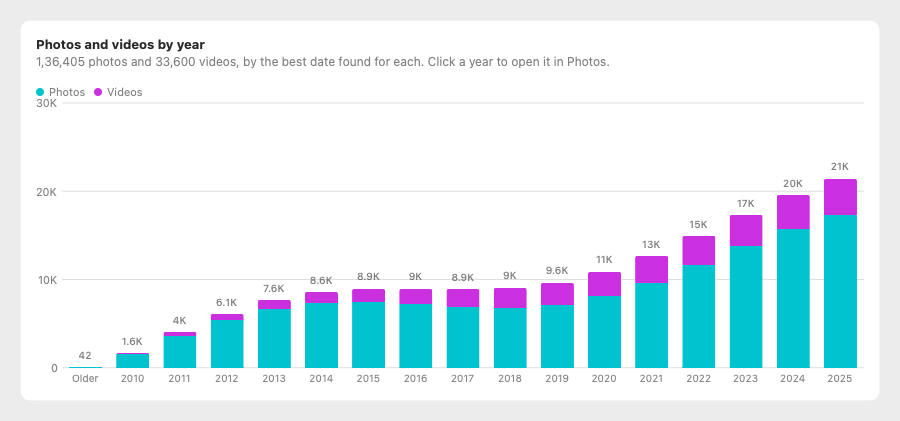
- Photos and videos by year: a stacked bar chart using the best date found for each item. Years with only a handful of files are grouped into an Older bar. Hover over a bar for exact photo and video counts, and click it to open that year in Photos.
- Photo details: how many have a location, how many Live Photos were found, how many dates are guesses, and whether any files couldn't be read. If details are still pending, use Read photo details.
- Largest files and empty folders, with Show in Finder.
- Suggestions: how much space exact duplicates use, how many photos are the same picture saved twice, and how many bursts could be narrowed down. Each has a Review button.
Photos
A timeline of every photo and video on the drive, newest first, no matter which folder it's in.
Browsing
- Group by Month or Event. Events group photos taken close together. A new event starts after a gap of more than 6 hours, or when the location jumps more than 150 km. Events are named after the folder most of their photos came from, if that folder has a meaningful name (generic names like
DCIM,Cameraor100APPLEare ignored). - Filters: year, camera or phone model, photos/videos/RAW only, Has location, and Uncertain date (items whose date was guessed from the file name or file date).
- Thumbnail size slider in the toolbar.
- Thumbnails are made in the background and cached on your Mac, so they stay visible when the drive is unplugged.
Preview
Double‑click a photo or video (or right‑click → Open preview) to open the full‑size preview. Use ← and → to step through and Esc to close. The side panel shows:
- date taken and where that date came from (camera, Takeout file, file name or file date);
- camera make and model, pixel size, file size and video length;
- location, with an Open in Maps link;
- the paired Live Photo video and sidecars;
- the folder it lives in, with Show in Finder and Copy path.
Files
A file explorer for the index, which is much faster than Finder on a large drive.
- Folder tree on the left, with the number of files and the total size of each folder (hover to see them). A lock icon marks protected folders.
- File table on the right, sortable by name, size, date and type, for the selected folder.
- Search across the whole drive or within the selected folder, using the search language.
- Right‑click a file for Open preview, Show in Finder, Copy path and Go to folder.
Search language
Type words to match file names. Words are matched anywhere in the name, case‑insensitively, and all words must match. Add key:value filters to narrow the results. Put values with spaces in quotes. If part of a search isn't understood, the app tells you in plain words.
beach type:photo year:2022 has:gps
ext:pdf,docx size:>5mb after:2021-06 before:2023
camera:"iphone 13" is:live
in:Takeout is:duplicate
is:uncertain type:media| Filter | Meaning | Examples |
|---|---|---|
type: kind: | File type. Values: photo, raw, video, media (photos and videos), audio/music, doc, archive/zip, installer, app, disk, code, sidecar, package, other | type:video |
ext: | File extension; separate several with commas | ext:heic · ext:jpg,png |
size: | File size, with > or < and kb, mb, gb or tb | size:>1gb · size:<200kb |
year: on: | Taken (or, for non‑media, modified) in that year, month or day | year:2019 · on:2023-12-25 |
after: since: | On or after a date | after:2022-06 |
before: until: | Before a date | before:2023-01-15 |
camera: phone: | Camera make or model contains the text | camera:canon · camera:"pixel 7" |
in: folder: | A folder with this name (or a a/b run of folder names) anywhere in the path | in:Vacation · in:"DCIM/100APPLE" |
has:gps / no:gps | Has, or lacks, a location | type:photo no:gps |
is:live | Part of a Live Photo pair | |
is:uncertain | Date guessed from the file name or file date, not the camera | |
is:duplicate | Has an exact copy on the same drive | |
is:similar | Belongs to a group of visually similar photos |
Results can be sorted by newest, oldest, name, largest or recently modified.
Duplicates
Duplicates has two checks: Find exact duplicates (any file type) and Find similar photos. Progress is saved as they go, so if you stop or quit, the button changes to Continue and picks up where it left off. Results appear in three tabs:
| Tab | What it finds | How |
|---|---|---|
| Exact copies | Byte‑for‑byte identical files of any type | Files are grouped by size, then by a quick hash of the start and end, then confirmed with a SHA‑256 of every byte. |
| Same picture | The same photo saved differently: resized, recompressed, converted or re‑shared through a messaging app | A perceptual fingerprint of each thumbnail, checked with Apple's Vision framework to rule out false matches. |
| Similar shots | Photos taken within two minutes of each other that look alike, such as bursts and retakes | Perceptual similarity plus capture time. |
Choosing what to keep
Each group suggests a copy to keep and says why. For exact copies it prefers a name that doesn't look like a copy (not photo copy.jpg or photo (1).jpg), the copy whose Live Photo video or edit files sit next to it, a folder not named as copies, and the oldest file. For similar photos it prefers the most pixels, then a real camera date, camera details and the larger file. Click Keep this one on another copy to override it. A person icon marks groups where you chose. Use the recommendation instead reverts your choice.
_Duplicates to review folder at the top of the scanned drive or folder, keeping their original folder structure. You can look through that folder and delete things yourself in Finder when you're sure.Protected folders
Protect any folder you want left exactly as it is: an archive you curate by hand, a client project, a backup. The organizer never proposes moving anything out of a protected folder, never places anything into one, and re‑checks protection right before each move, even for files you approved earlier.
- In Files: right‑click a folder and choose Protect this folder (or Remove protection). Protected folders show an orange lock, and their subfolders show a grey lock.
- In Organize: use Protect folders first… before making a plan, right‑click any planned file and choose Protect folder “…”, or use Protect a folder… and Remove in the protected list on the New folders tab.
Changing protection updates an existing plan automatically.
Organize
Organize proposes a new home for each file, all under one new Organized folder on the same drive. Making a plan changes nothing on the drive: it is only a list of suggestions stored in the index.
The proposed layout
- Photos are filed by the date they were taken; videos by year.
- Documents, audio and archives keep the name of the folder they came from, so related files stay together.
- Live Photo videos and sidecars (
.AAE,.xmp, Takeout.json) always travel with their photo. Approving or rejecting the photo applies to them too. - If two files would end up with the same name, the newcomer gets a suffix such as
IMG_0001 (2).jpg, and its companions get the same suffix so they still match.
What stays where it is
Some folders only work as a whole, so the planner leaves them in place and lists them on the Left where they are tab with the reason:
- software projects (for example, folders containing
package.json,.xcodeproj,.sln, or many source‑code files); - app bundles, phone backups (
Manifest.db), iTunes libraries, Lightroom catalogs (.lrcat), message exports (_chat.txt) and Windows program folders; - loose code files, sidecar files without their photo, app bundles, and file types the app doesn't recognise;
- anything in a protected folder;
- files that are already where the plan would put them.
Reviewing the plan
The plan is split into batches such as Photos · 2023, Videos · 2023, Documents, Audio, Archives, Installers, Disk images and Duplicates to review. Each batch shows its size, how many are approved and how many have warnings.
- Proposed moves tab: each file with its current place, its new place and the reason. Filter by All, Needs a look, Undecided, Approved, Rejected or Moved, or type in Filter by name or folder. Select files and click Approve, Reject or Undecide (also on right‑click), or use Approve batch / Reject batch (Approve all / Reject all when no batch is selected).
- New folders tab: the folders the plan will create, with counts, and your protected folders.
- Left where they are tab: what stays in place, and why.
Your approvals are kept when you remake the plan (for example, after protecting a folder), as long as a file's proposed destination hasn't changed.
When a plan goes out of date
If you rescan the drive, or move or undo files from another plan, after making a plan, a yellow banner says the plan is out of date and moving is turned off. Click Remake plan to refresh it.
Moving files
When at least one file is approved, the plan is current and the drive is connected, Move approved files… becomes available.
- Confirm. A sheet shows how many files and how much data will move, and repeats the safety rules. Tick I understand these files will be moved on [your drive] and start the move.
- Checks before each group. For each file and its companions the app re‑checks that:
- the drive is the same one (by volume ID) and is connected;
- the file still has the same inode, size and modification date as when it was scanned;
- nothing exists at the new place;
- neither the old nor the new place is inside a protected folder;
- the new place is on the same drive.
- Move. New folders are created as needed, then each file is moved with the no‑overwrite rename. If one file in a group (such as a photo and its Live Photo video) fails, the others in that group are put back, so groups are never split.
- Done. The index is updated in place, so Photos, Files and search show the new locations immediately, with no rescan needed. The batch appears in History.
You can press Stop at any time. The current group finishes, nothing is left half‑moved, and everything that was moved can still be undone.
History and undo
History lists every move batch, newest first, with its date, the number of files moved, skipped and with problems, and a status badge: Done, Done with problems, Stopped, Interrupted, Undone or Partly undone.
Select a batch to see every file with its original folder, new place and any note. Filter by Moved, Skipped, Problems, Put back or Couldn't put back. Right‑click a row for Show in Finder or Copy current path.
Undo
Click Undo… and confirm. Files are moved back in reverse order to their original folders, which are recreated if they've since disappeared. The same no‑overwrite rule applies: if something now sits at a file's original place, that file is skipped and stays at its new place. Afterwards, the folders the batch created are removed only if they are empty, starting with the deepest. The plan shows those files as approved again, so you can move them later.
The log file
Click Show log file in the History toolbar to open operations.log, a plain‑text record of every move and undo with timestamps. It's written alongside the database, so you have a readable record even outside the app.
How dates are found
Each photo and video gets the best date available, and the app remembers where it came from:
| Source | Confidence | Notes |
|---|---|---|
| Camera metadata (EXIF, video creation date) | High | The time the photo was actually taken. |
Google Takeout .json sidecar | High | Takeout often strips metadata from the image but keeps it in a sidecar. |
| File name | Guessed | Patterns such as IMG_20230115_…, PXL_…, Screenshot 2023-01-15… and WhatsApp's IMG-20230115-WA0001. |
| File modification date | Guessed | The last resort. This is often the date the file was copied, not taken. |
Guessed dates are flagged with a question mark in Photos, can be found with is:uncertain, and produce a warning in the organize plan.
Interruptions and recovery
- Scans and duplicate checks save as they go. Stop, quit or unplug at any time and the next run continues.
- Moves use a write‑ahead journal: each file is marked moving before the rename and moved after. If the app quits, the Mac loses power or the drive is unplugged mid‑move, the next time the drive is connected the app checks each unfinished entry on disk (by inode) to see where the file actually is, fixes the record, and marks the batch Interrupted. You can then undo it as normal.
- Unplugging during a move stops it safely. Files not yet moved stay where they were.
Where data lives
| What | Location |
|---|---|
| Index database (files, photo details, duplicates, plans, journal) | ~/Library/Application Support/FileOrganizer/index.sqlite |
| Move and undo log | ~/Library/Application Support/FileOrganizer/operations.log |
| Thumbnails | ~/Library/Caches/FileOrganizer/thumbnails |
Nothing is written to the scanned drive except the moves you approve. Deleting the thumbnails folder is always safe because they are re‑created when needed. Deleting the database makes the app forget everything, including the undo history, so keep it until you're happy with any moves.
Command‑line tool
organizer-cli shares the engine with the app and uses the same database. It's handy for scripting and testing. It can scan and report, but it cannot move files.
swift run organizer-cli scan /Volumes/MyDrive
swift run organizer-cli summary| Command | What it does |
|---|---|
scan <folder> | Scan or rescan a drive or folder (read‑only) |
summary | Counts and sizes by type for each indexed drive |
metadata | Read photo and video details for files not read yet |
photos | Photo and video statistics |
search "<query>" | Run a search using the search language |
dupes / similar | Find exact duplicates / similar photos |
large / empty | List the largest files / empty folders |
bench / plan-bench | Performance checks for search and planning |
Building and testing
The project is a plain Swift package with no Xcode project and no third‑party dependencies. It uses SwiftUI, ImageIO, AVFoundation, Vision, CryptoKit, QuickLook Thumbnailing and the system SQLite.
swift build                    # debug build
./scripts/test.sh              # run the tests
./scripts/make-app.sh          # release build/FileOrganizer.app
swift scripts/make-icon.swift Resources/AppIcon.icns   # regenerate the icon
The tests run only on folders they generate in a temporary directory, with synthetic photos carrying EXIF dates, cameras and locations. The safety tests check that:
- a move never overwrites, and only empty folders are removed;
- move and then undo returns a byte‑identical tree (same paths, sizes, dates, inodes and hashes) and the same set of folders;
- a file that changed after planning, or a destination that became occupied, is skipped;
- folders protected after approval are respected;
- an out‑of‑date plan is refused;
- a simulated crash in the middle of a move is reconciled correctly and can be undone.
scripts/test.sh loads the Swift Testing macros explicitly, so the tests also run with only the Command Line Tools installed.
Architecture
Plan and move states
Every transition into moving or undoing is committed to the database before the file system is touched, and the result is committed after. That is what makes crash recovery possible.
FAQ and troubleshooting
Does the app upload anything?
No. It has no network code. Your index, thumbnails and log stay on your Mac.
Can it delete my duplicates?
No. On purpose, the app cannot delete files. It can move extra copies into _Duplicates to review once you approve, and you decide what to delete in Finder.
Why is “Move approved files…” greyed out?
One of these is true: nothing is approved yet, the plan is out of date (click Remake plan), the drive isn't connected, or another job such as a scan is running.
Why were some files skipped?
Open the batch in History and filter by Skipped. The note explains each one, for example “It changed since the scan” or “Something is already at its new place”. Rescan, remake the plan and move again if you like.
A whole folder wasn't included in the plan.
Look on the Left where they are tab. It is probably a software project, backup, library or app bundle that only works when kept together, or it's inside a protected folder.
Lots of photos have the wrong year.
Search for is:uncertain. These photos had no camera date, so the date came from the file name or the date the file was copied. If they came from Google Takeout, make sure the .json files are on the drive next to the photos and rescan.
macOS says the app can't be opened.
Right‑click the app and choose Open, or allow it under System Settings → Privacy & Security. Building it yourself with ./scripts/make-app.sh avoids the warning.
Does it work with exFAT or older Macs?
exFAT, FAT32, HFS+ and APFS drives all work. The app needs macOS 14 or later on Apple Silicon.
How do I start over?
Quit the app and delete ~/Library/Application Support/FileOrganizer and ~/Library/Caches/FileOrganizer. If you have moved files, undo them first, because deleting the database also deletes the undo history.
Limitations
- Apple Silicon and macOS 14+ only. The app is not notarized.
- Duplicates are found within a drive, not across drives, and moves never cross drives.
- The plan list shows the first 5,000 files of a batch at a time. Use the filters to narrow it down.
- Planning a drive with hundreds of thousands of files takes a few seconds and a few hundred MB of memory.
- Event names come from folder names. There is no face or scene recognition.